Collaboration
It is possible to work as a team on a common domain. This means that several people can independently annotate the data of a domain in parallel.
Add Members to Domain
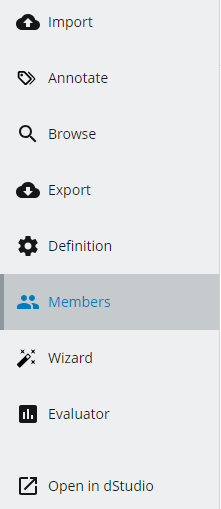
You can add members to your domain. To add a member, navigate to "Members" on the sidebar.
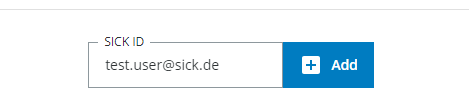
Enter the SICK ID (usually the email) of the user you want to invite to your domain. The user also needs to have a valid subscription if they should do more than just annotate data.
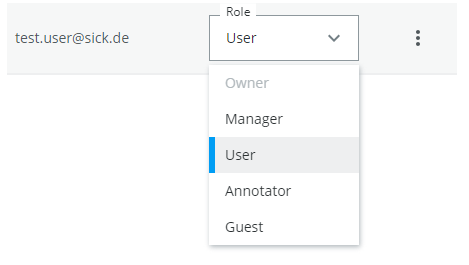
The members can have different roles:
- Guest
- Annotator
- User (default)
- Manager
Click on save
More about the member roles
Annotator
An Annotator- can view annotation jobs they are added to
- can annotate data through their annotation jobs
- does not need a subscription
Guest
A Guest can- browse data
- use existing exports
- view the domain definition
- duplicate the domain definition (without the data)
User
A User has all the permissions of both Guest and Annotator, and can additionally- upload data
- annotate data
- create exports
- create and edit annotation jobs
User
A Manager has all the permissions of a User, and can additionally- edit domain members
- edit domain access filters
- edit the domain definition
Owner
The Owner is ultimately responsible for the domain. A domain can only have one Owner and by default this is the creator the domain. The Owner has all permissions of a Manager, but is additionally the only one who can delete the entire domain. The Owner can also transfer their ownership to another member.Important
Some features might be restricted to certain subscription levels.Access Filters
You can control the access to an entire domain using the domain permissions. But this means, that users of a domain can still see all the data in a domain, they just can't use all of the functionality. GDPR or other regulations may have you need to restrict access to some subsets of the data in a domain. This is were access filters come in handy. You can add an access filter to any user of the domain (who isn't an owner) and they will only be able to see what is specified in this filter. They can not remove it or change it and can only access exports which conform to the access filter(s).
Creating an access filter
Go to the Members page. This can only be done by an owner or manager of the domain.
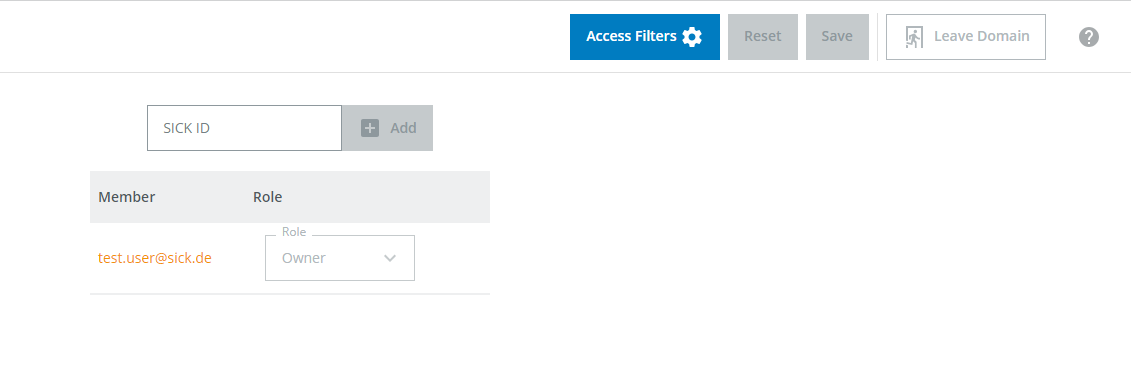
Add a user and give them any permissions on the domain but owner or manager.
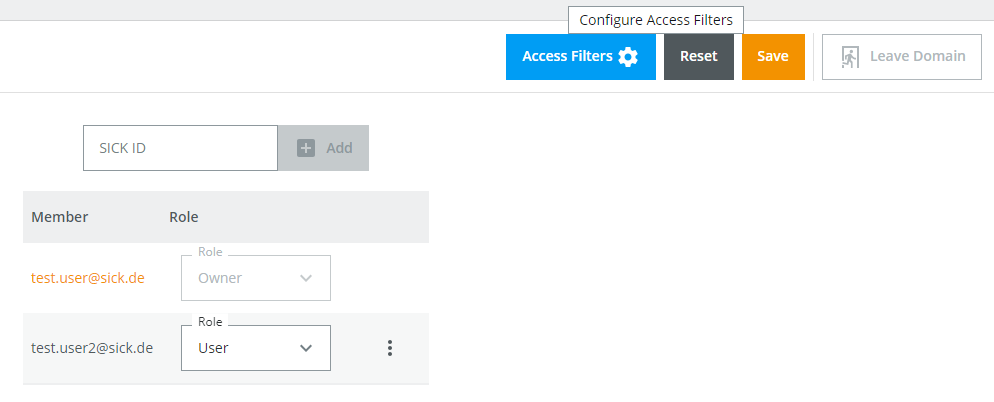
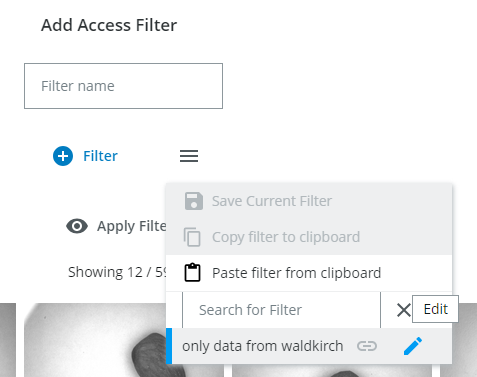
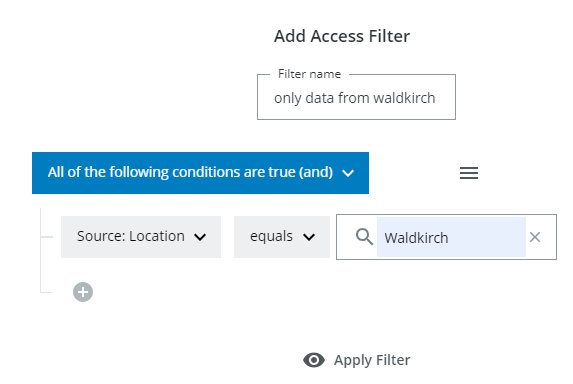
Click on the access filter button to configure an access filter. Add for example a filter to restrict the user from accessing data from anywhere else but Waldkirch.
Save the filter and activate it for the user.
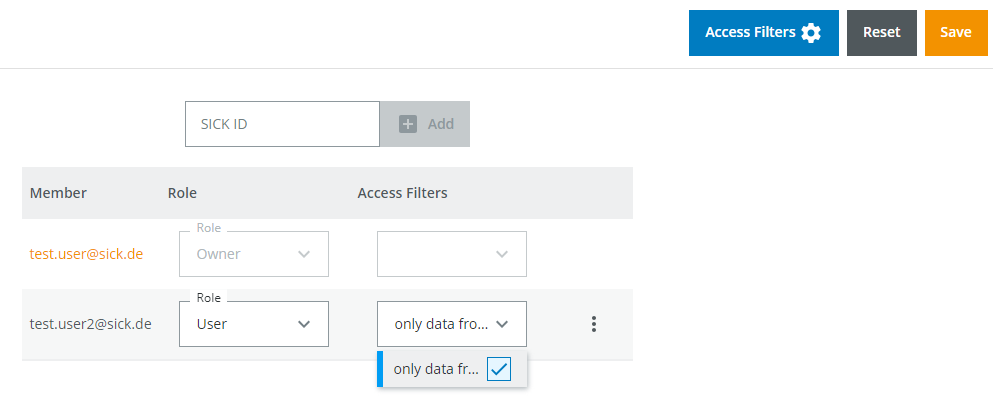
Access filters from the view of the user
When the access restricted user browses the data they will only see the data they have access to. They will know that their data is restricted because of the access filter icon in the filters. They can click on the view icon to see which data they have access to.
If they try to access an export or an annotationjob which contains data they don't have access to they will get the following error:
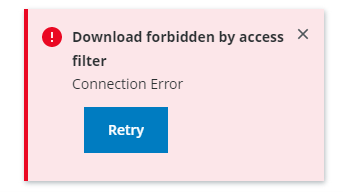
To annotate/export the same data as in this annotationjob/export they can duplicate the annotationjob/export and start it again/run the export again. The access filter will automatically be in effect.
Changing an access filter
If you want the same user to have more restrictions you can either add another access filter, which can be concatenated to the previous one, or you can adapt the already existing one. Go to permissions and click on the configure icon. Choose an already existing one from the list.
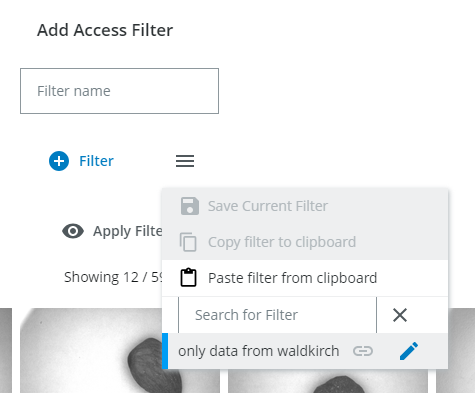
adapt the filter
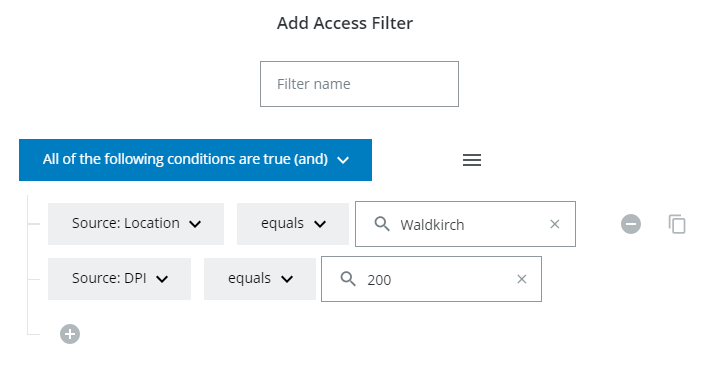
and overwrite an existing filter by giving it the same name and clicking on save. It will automatically be in effect for every user who had this filter before.
Deleting an access filter
Go to configure and open the menu next to the filter. Click on edit for the filter you want to delete and then on Delete. It will be removed for every user who had this access filter before.