Browser
Browsing the domain
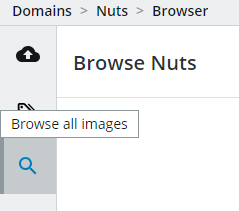
Click on the Browser icon in the side panel to view the images already imported to the domain.
You will now see a preview of 12 images of the total of 592 images that were imported (preview may differ).

Click on "Load More" button on the bottom of the page to display more data items. If you click on the three dots you can select how many data items to load per click.
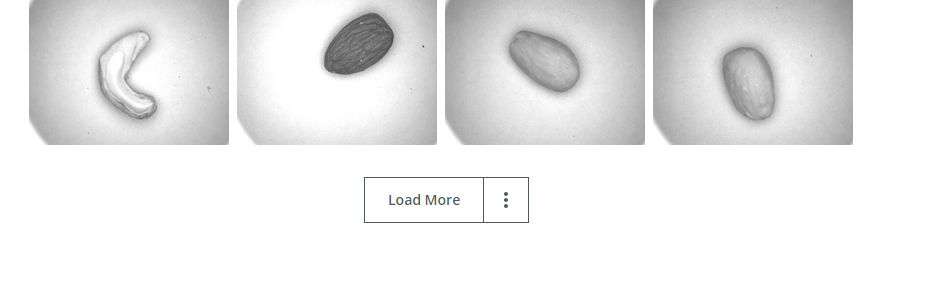
Browsing all images
In the browser you can have a quick look at the images in the domain. Filter for the domain variables, the upload timestamp and much more. Click on the images to see their annotations and change them.
Filter
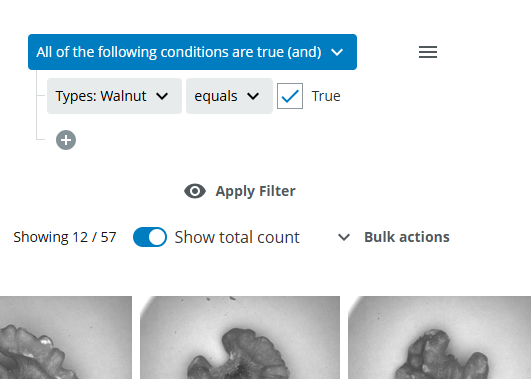
You can now filter using annotations that were set during the import, for example filter for all images that have a walnut on them and click "Apply Filter":
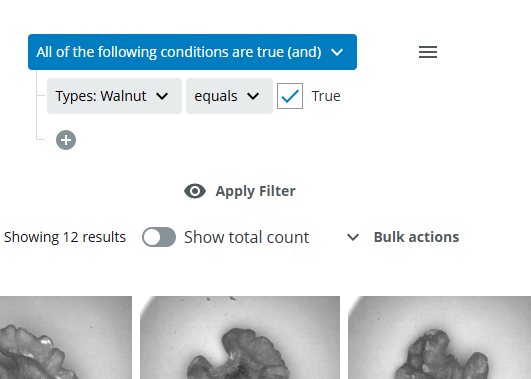
You can toggle on "Show total count" to see the total count of images matching the filter. This is not shown by default since for large domains it can take some time to obtain this information.
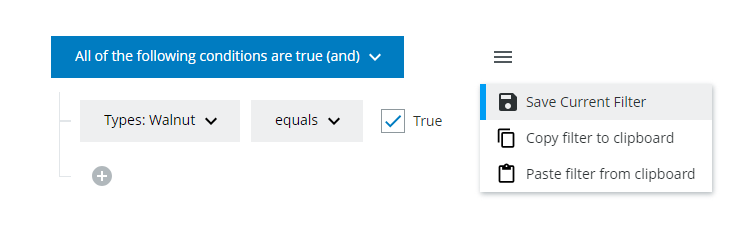
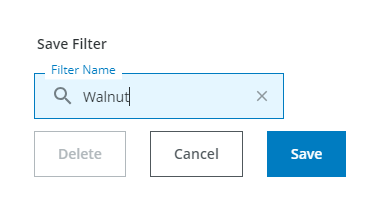
Save this query as we might be needing it later on.
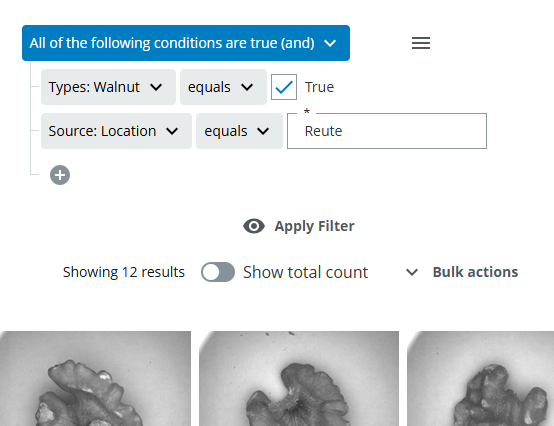
You realize that the walnut images you imported before were not from Waldkirch, but from Reute. You click on one of the filtered Images and change the annotation:
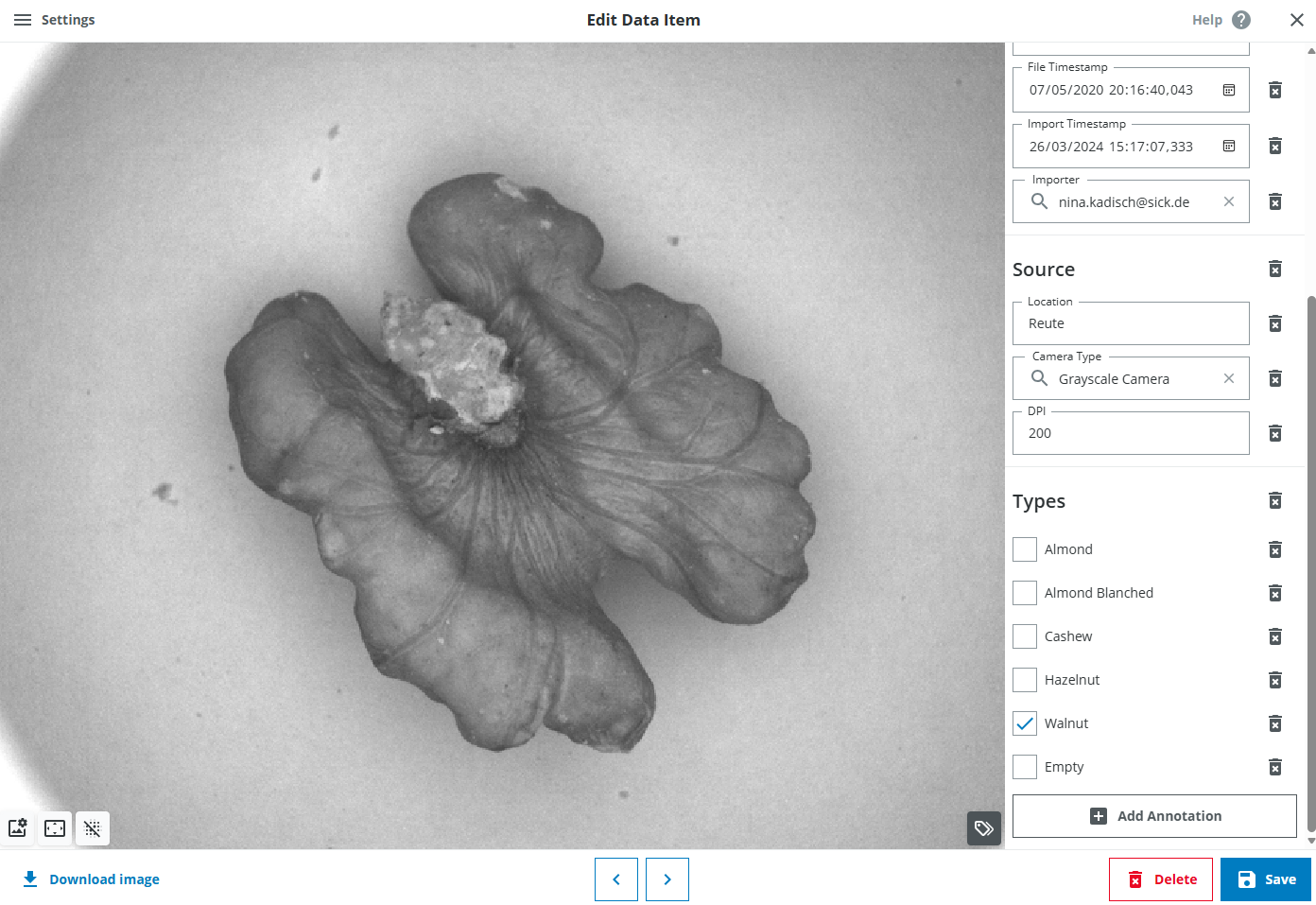
You can now also see the "automatically generated annotations" that were mentioned in the Import step. The timestamps are set in Coordinated Universal Time (UTC).
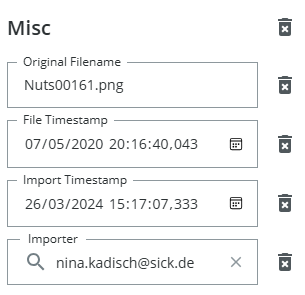
Click on save to save the new annotations.
Filters
You can filter every variable of the domain - for its annotation value - when it has been modified last - if it has been reviewed already (meaning if an annotation has been set for this variable) - by whom it has been modified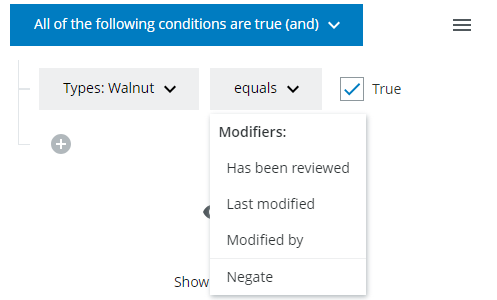
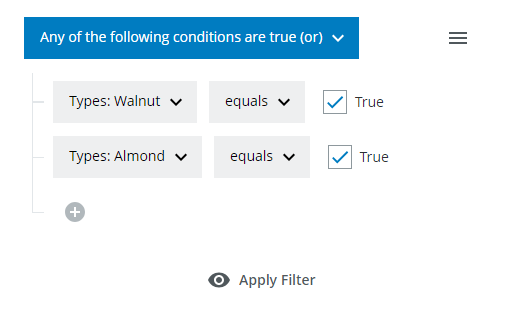
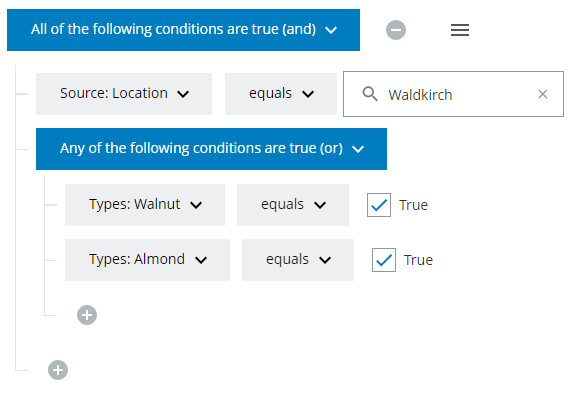
You can also create complex queries by chaining queries using an OR or AND operator, for example filter for images containing walnuts OR almonds. Click on the plus icon to add more conditions and on the minus icons (visible on hover) to remove conditions. Click on "Apply Filter" to show all images that match the condition specified in the above filter.
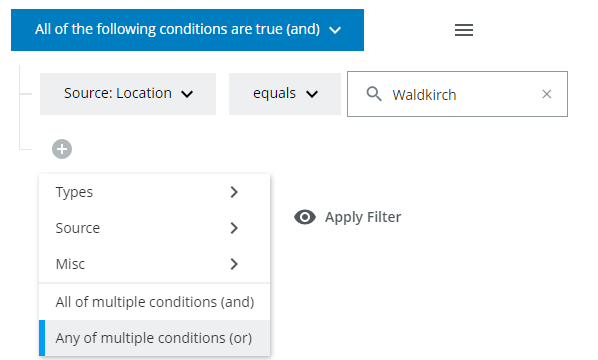
You can also nest different queries, for example filter for Walnuts or Almonds that must be from Waldkirch.
State "Has been reviewed"
Every annotation per data item has the state "has been reviewed", which basically means if anybody has ever looked at this data item and set this annotation. If you click on an image in the browser you can see which annotations have already been set (the Misc annotations are always there). All annotations that are displayed on the right side of the image "have been reviewed" and can be filtered for:
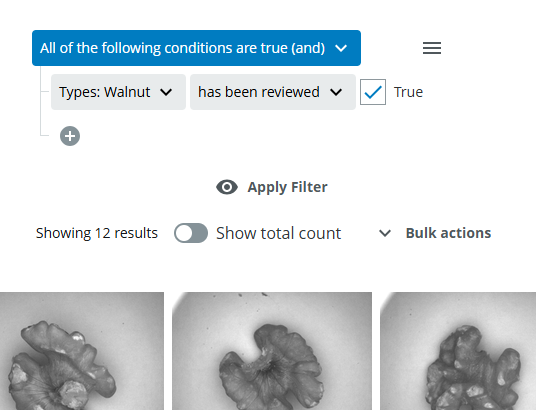 With this tutorial we only get the imported walnuts.
Filter for "Types: Walnut has been reviewed equals True". Now you will not only see all the walnuts that you have annotated before, and all other images where the annotation value for Types Walnut has been set. It does not matter if the value is true or false, every image that has this annotation will show up.
With this tutorial we only get the imported walnuts.
Filter for "Types: Walnut has been reviewed equals True". Now you will not only see all the walnuts that you have annotated before, and all other images where the annotation value for Types Walnut has been set. It does not matter if the value is true or false, every image that has this annotation will show up.
This is really helpful if you want to see all images, that have not yet been reviewed and annotate them.
Annotate and Delete Multiple images at once
You do not need to change the location manually for all the other walnut images, but you can also use the "bulk annotation" functionality. Click on "Set Annotations" with the filter still active.
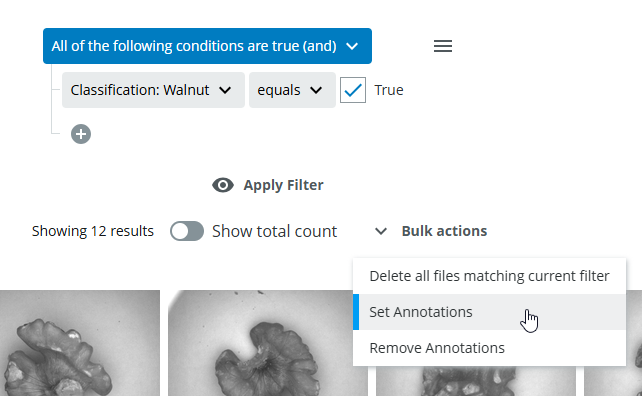
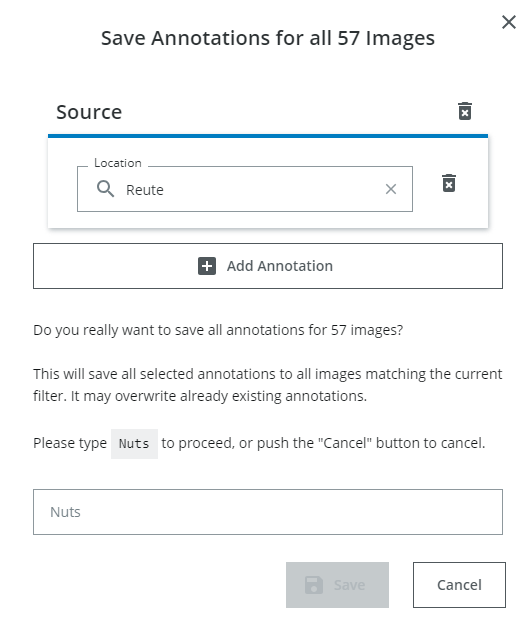
You can now set or change the annotations as you wish and click save. Note, that the new annotation "Reute" is suggested once you start typing, since there is already one data item with this annotation. If not, reload the browser and use the saved filter.
Check if this has worked by filtering for location Reute and type walnut.