Domain Creation
Creating a Domain
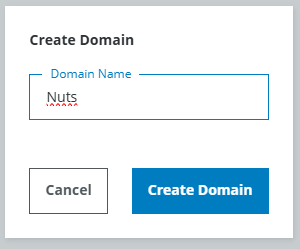
On the main page you will find the Create button. Click it and you will be redirected to the domain edit page where you can create the first domain which is called "Nuts".
Domains and Data items
A domain consists of the so-called "data items" that belongs to one application. Each data item consists of an image and annotation values. For the application "Nuts" all images belong to this domain. For another application that might have to do with images of bottles a new domain would be created to hold all the "bottles" data. A Domain has a definition which consists of multiple variable groups which hold variables. The values of these variables per data item are called annotations. If you have applications with overlapping data, they should be in the same domain, because you cannot share or combine data from different domains, they are strictly separated. Data can still be separated by setting annotations, like the company the data was taken at or the camera it was taken by. Note, that you can always edit the domain even after you have imported images. You can add new variables, change the names of already existing ones or delete variables (but all corresponding annotations will also be deleted).Adding Classification Groups
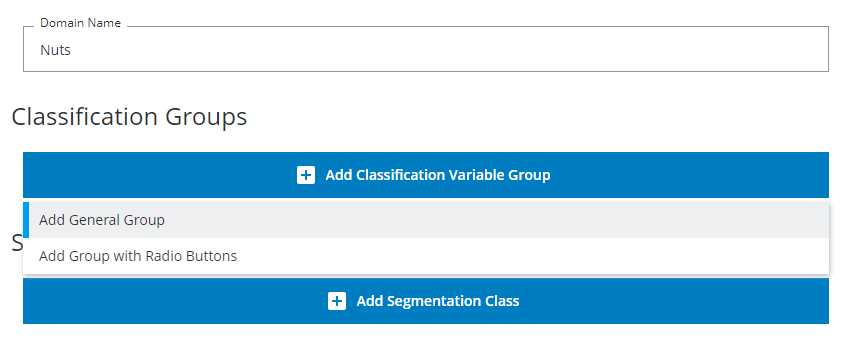
First you add a general variable group and call it "Types".
Adding Classification Variables
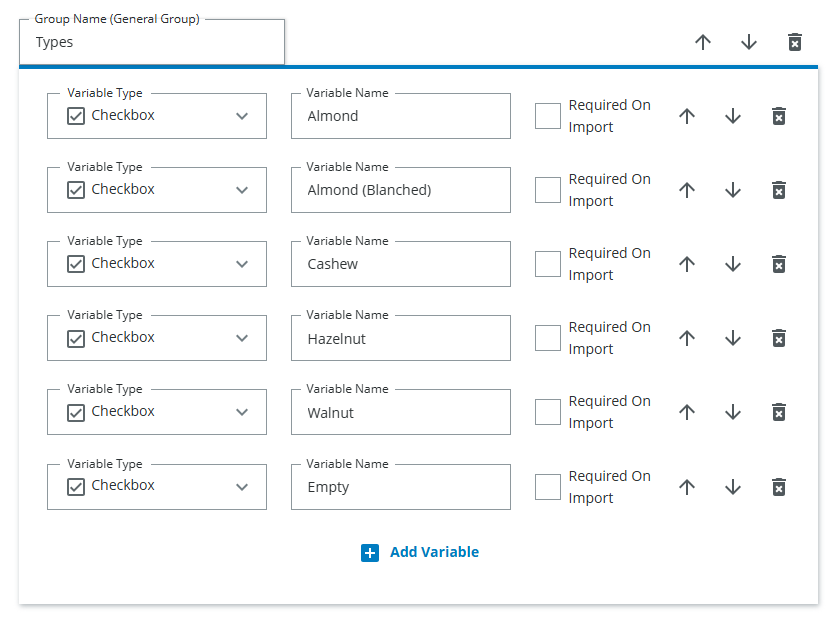
Then you can add some checkboxes for the Nut types. It will look like this after you have added all types of nuts.
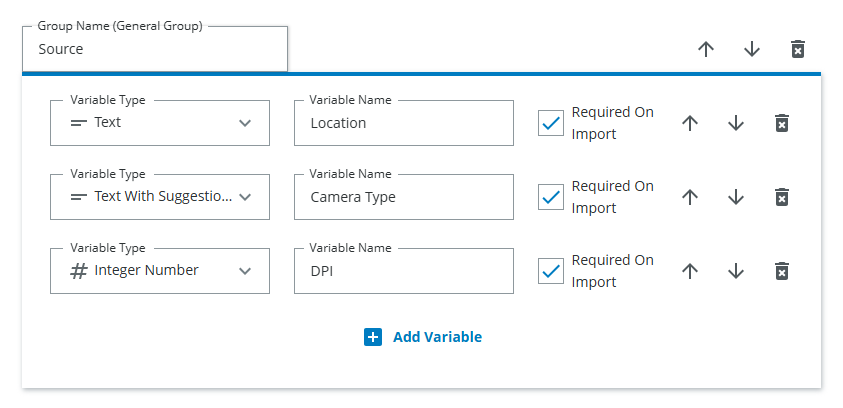
Also create another variable group called "Source" where you can specify where the images came from. Use the "Text Field with suggestions" variable type for this, in order to get suggestions later. Add the location and the cameratype the images were taken with and also the DPI which is an integer. Also check the "Required on Upload" checkbox to make this information mandatory.
Classification Groups
A classification group holds variables that belong together, for example the types of the nuts are in one group. If the possible annotations of one group are mutually exclusive, meaning only one classification annotation at a time can be true you can choose "Add mutually exclusive group". Note: There are only very few cases where annotations are mutually exclusive and often they can be better portrayed by using strings as variables.Classification Variables
You can add as many variables to a variable group as you like. The variables will later be shown in the annotation process as the following:- Checkbox: A simple classification tag is either True or False, this results in a checkbox for annotation. Do not add boolean variables that are opposites, for example: "walnut", "no walnut". You can later filter for all images that don't have the annotation "walnut", so you will not need to annotate any opposites.
- Text: You can annotate text for every data item, for example the original filename of the data item. This is typically only used by the automated annotation that is created during the upload.
- Text With Multiline Support: text that supports word wrapping.
- Text With Suggestions: You can annotate text for every data item, for example the sensortype that produced the data item or the company the data item is from. Be aware, that this field should only be used for maximum 200 different annotation values in order for the suggestions to be fast. If you need more, please use the Text Field, see below.
- Integer Number / Float Number:You can annotate integer values or float values for every data item, for example the dpi of an image or the count of objects on an image.
- Datetime: You can annotate a date for every data item. This is typically only used by the automated annotation that is created during the upload.
- User: You can annotate a user for every data item. This is typically only used by the automated annotation that is created during the upload.
Automatically generated annotations
You do not need to take care of annotating metadata such as the original filename of the image, or file timestamps, since upon the first import of data some annotations are generated automatically. The following variable group will be displayed after the first import.
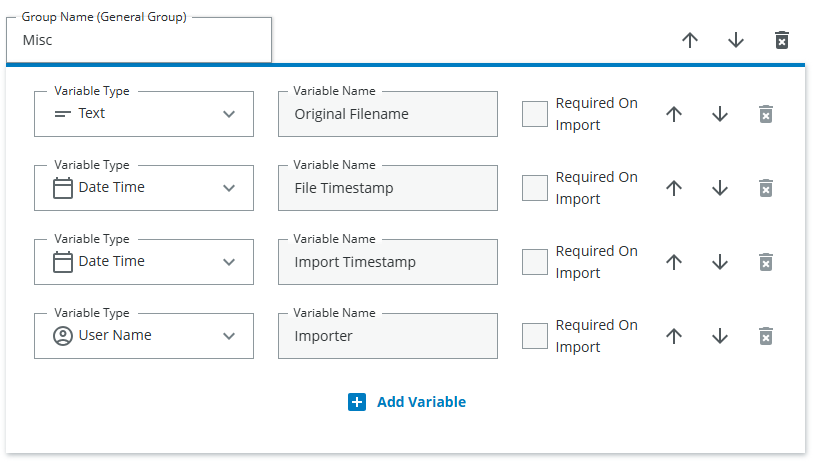
Automatically Generated annotationss
When new data items are imported some annotations are generated automatically:- Original Filename of the uploaded item
- Original File Timestamp
- Import Timestamp
- Importer (the user that added the item to the domain)
Press the Save button on the top panel. Now you have set up the domain and are ready to import the images.