Review Jobs
When there are multiple people annotating, it could be useful to review the annotations that have been made. This could be to ensure consistency over time and between annotators. To do this, you can set up a Review Job
Creating a Review Job
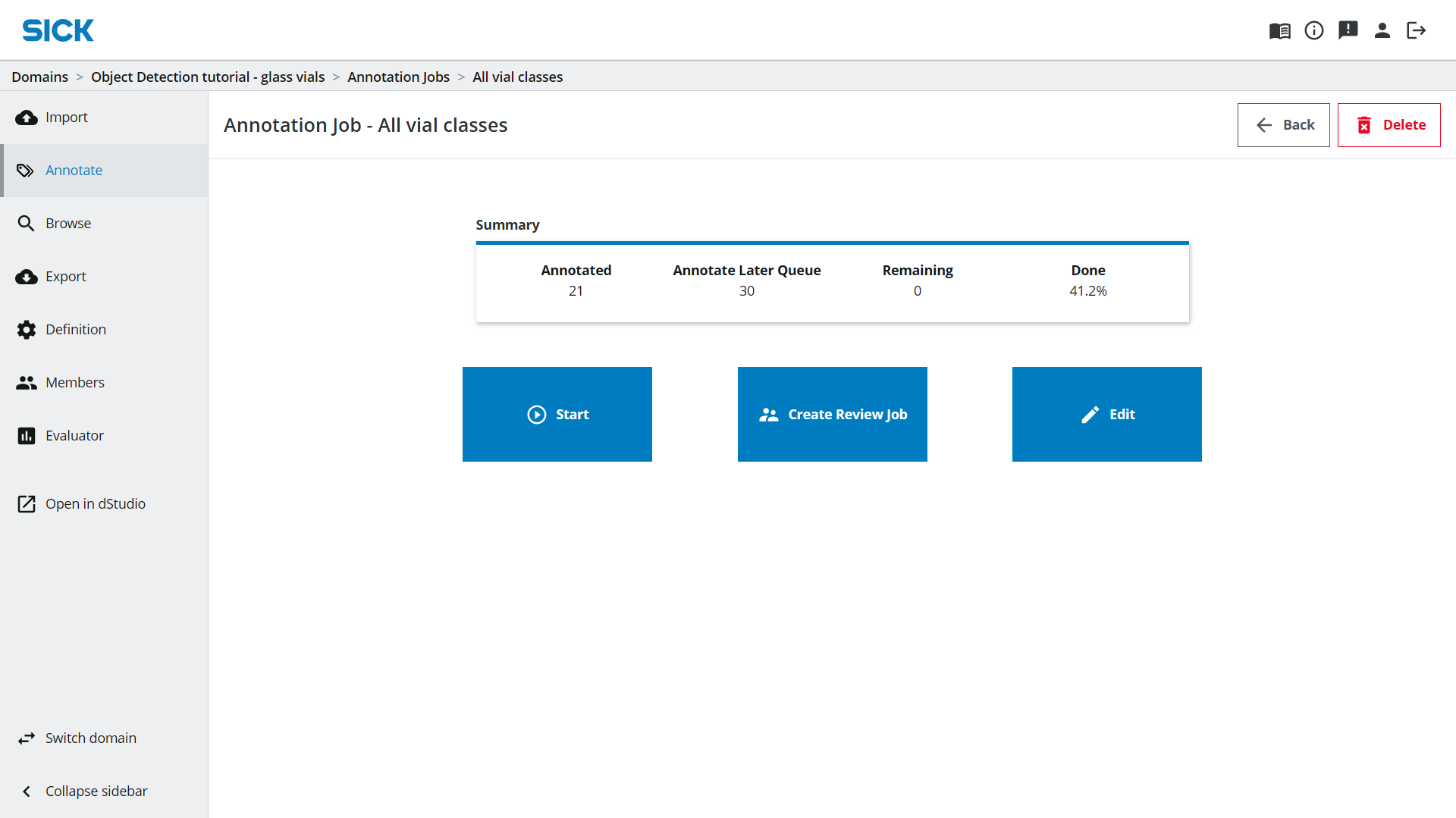
After some annotations have been made, go to the Annotation Job that you and your team have been working on and press Create Review Job.
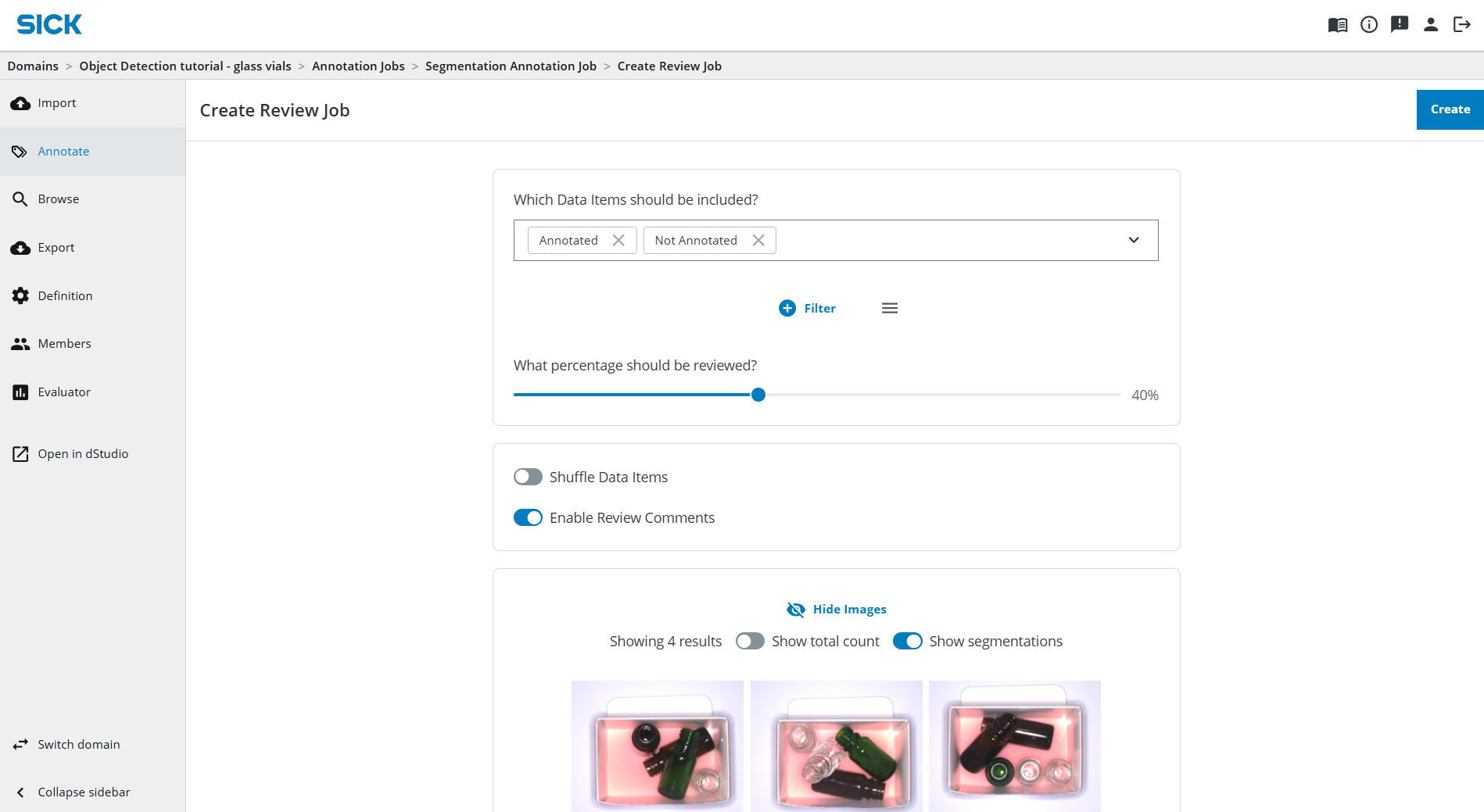
In the next step you will set up the Review Job by defining the following setting:
-
Which Data Items should be included?: In order to review the images which have been annotated, choose Annotated. You probably also want to include images in the Annotate Later Queue since the annotator has flagged those images as difficult to annotate. If you only want to review images which have not been annotated yet, you should instead choose Not Annotated.
-
Filter: Define an additional filter that applies to the data items selected in the step before. This can be used to focus your review on a specific object class, etc.
-
What percentage should be reviewed?: Use this setting to choose if you want to review all or only some of the images.
-
Shuffle Data Items: Enable if you want to review images in a random order.
-
Enable Review Comments: Enable this toggle in order to be able to add comments to each image.
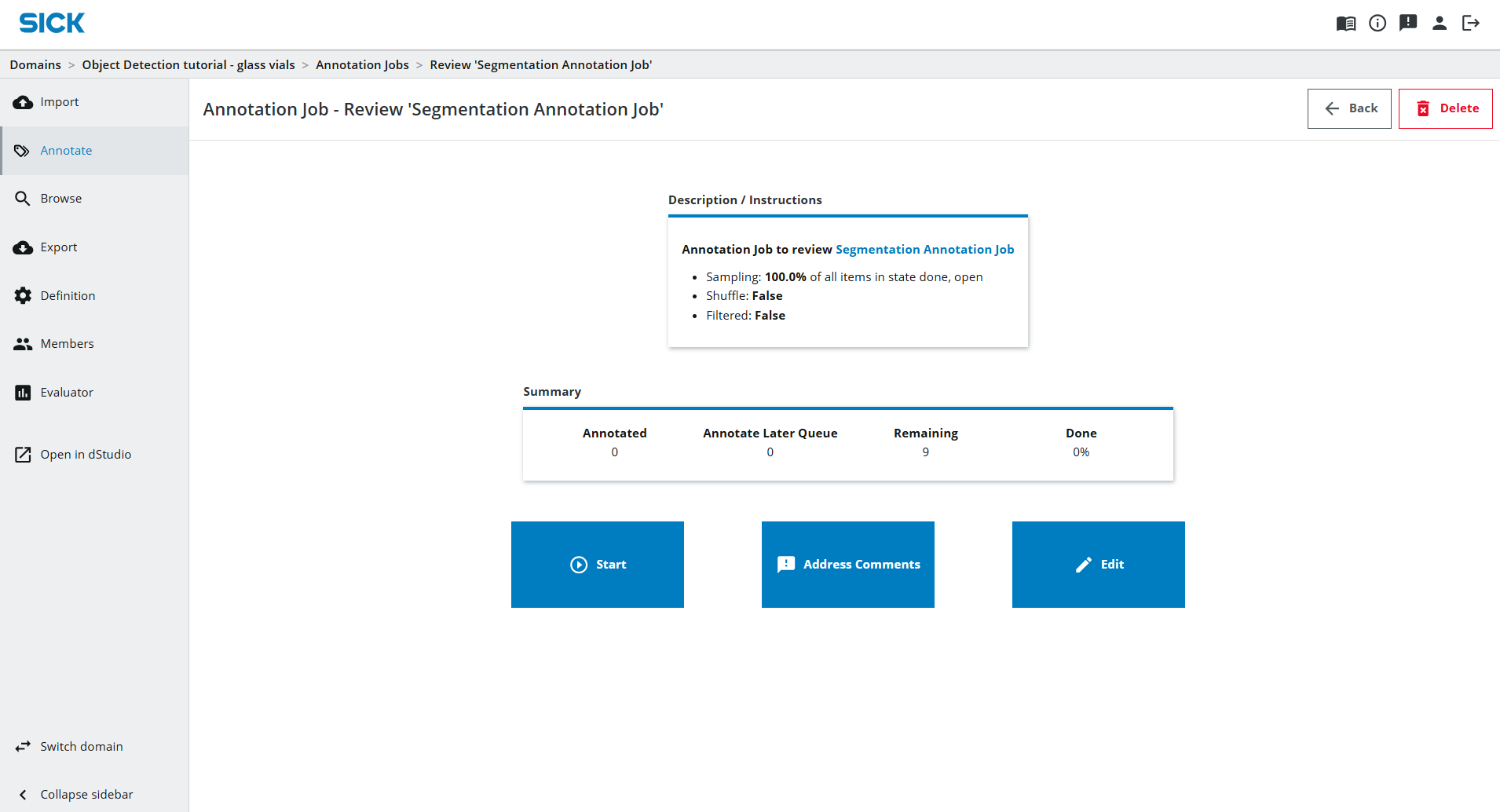
After choosing your settings, you can always preview the data items that will be added to your Review Job by clicking View Images. Once happy, press Create. This will take you to an overview of the new Annotation Job. Press Start.
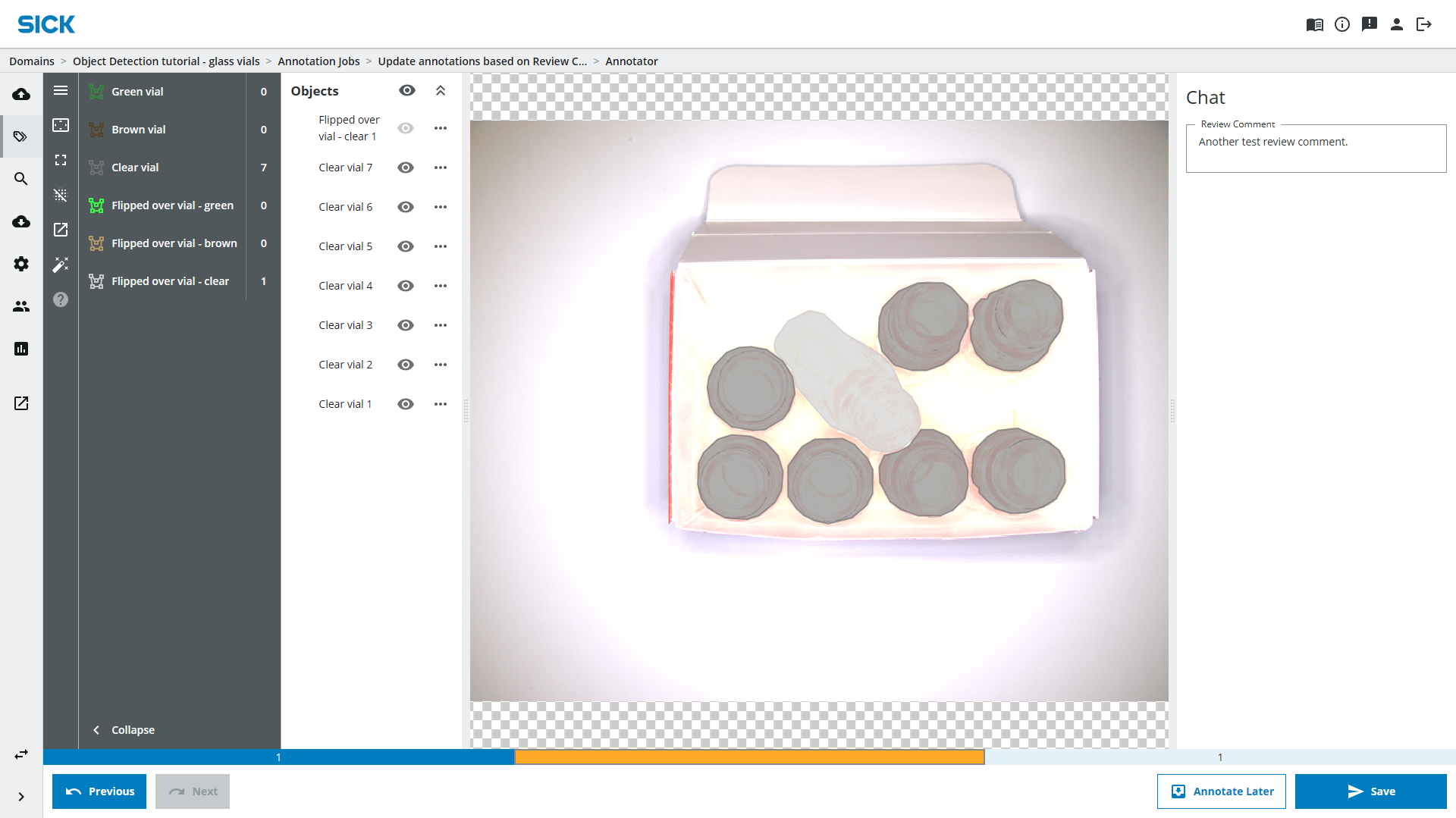
You are now in the Review Job view which works similarly to the Annotation Job view with the addition that you can enter Review Comments in the Chat pane on the right hand side (if you enabled Review Comments). Enter your comment and press Save. Repeat for the other images in the Review Job.
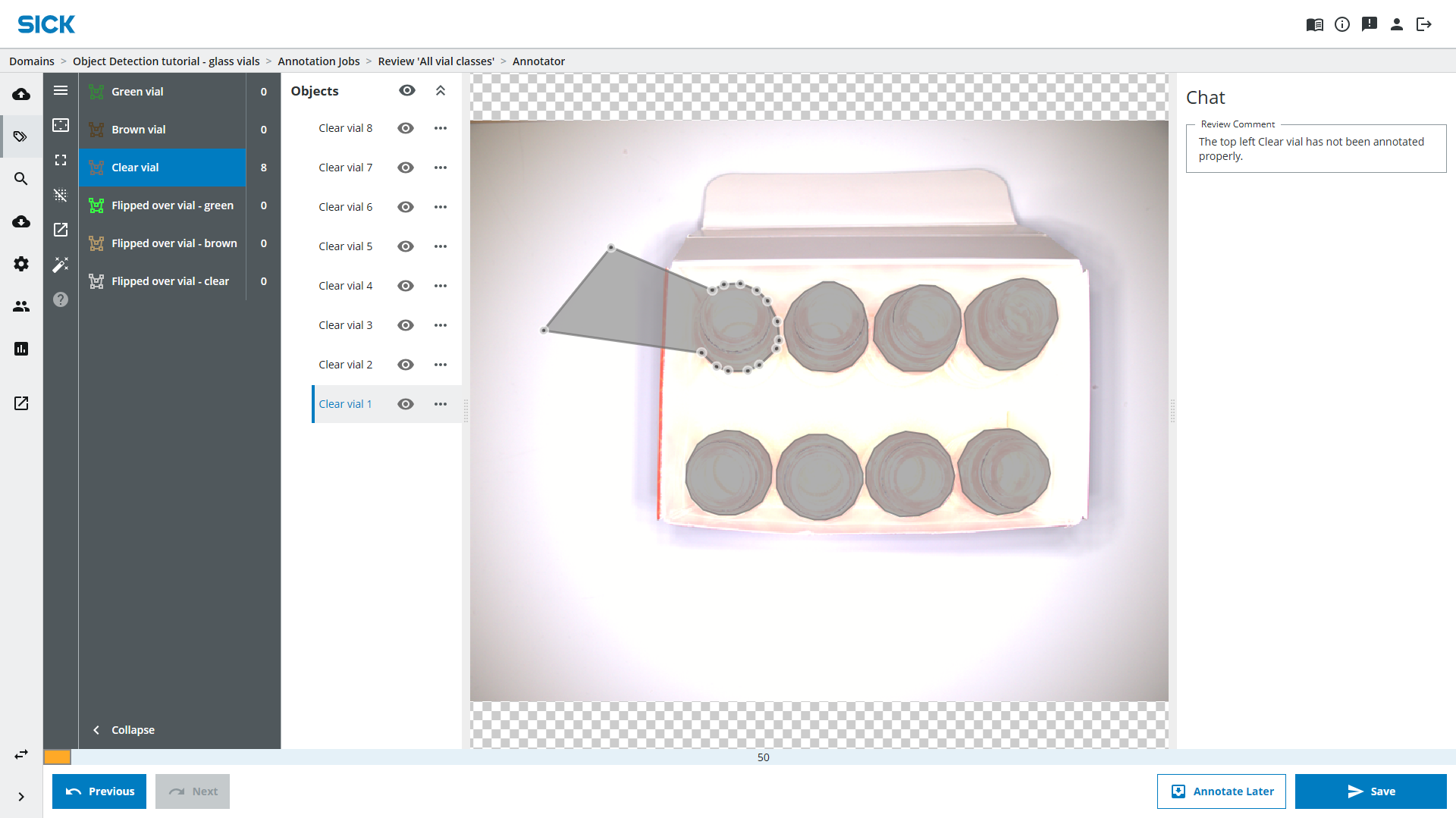
Access images that have Review Comments
After you have completed the Review Job you probably want to have someone read your comments and update the annotations accordingly. To do this, you can set up an Annotation Job to address the Review Comments.
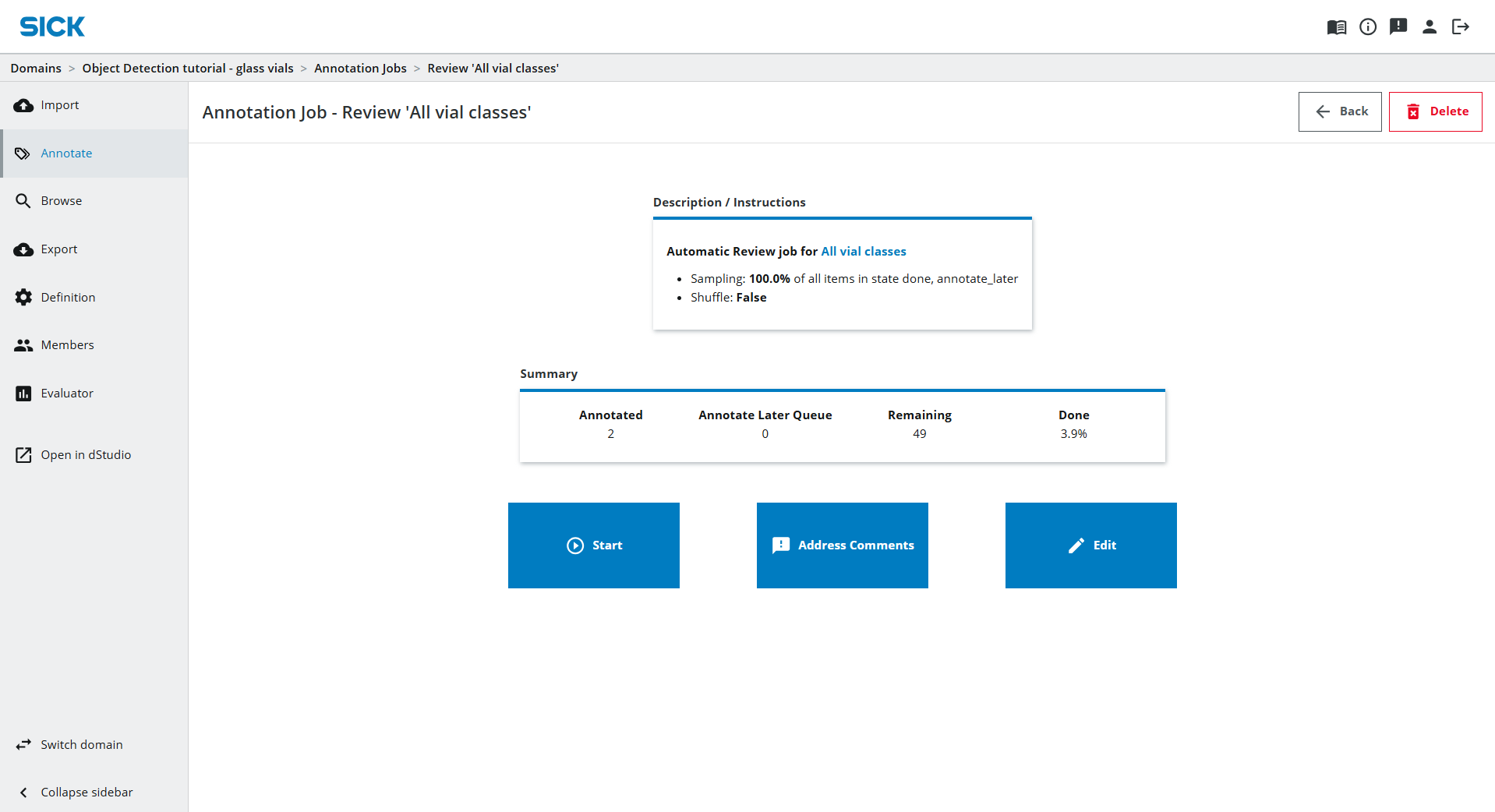
To do so, click on the button "Address Comments" on the overview page of your Review Job. This will guide you to the Creation Page with a filter on Review Comments automatically filled in. Create the job by clicking Create just as before.
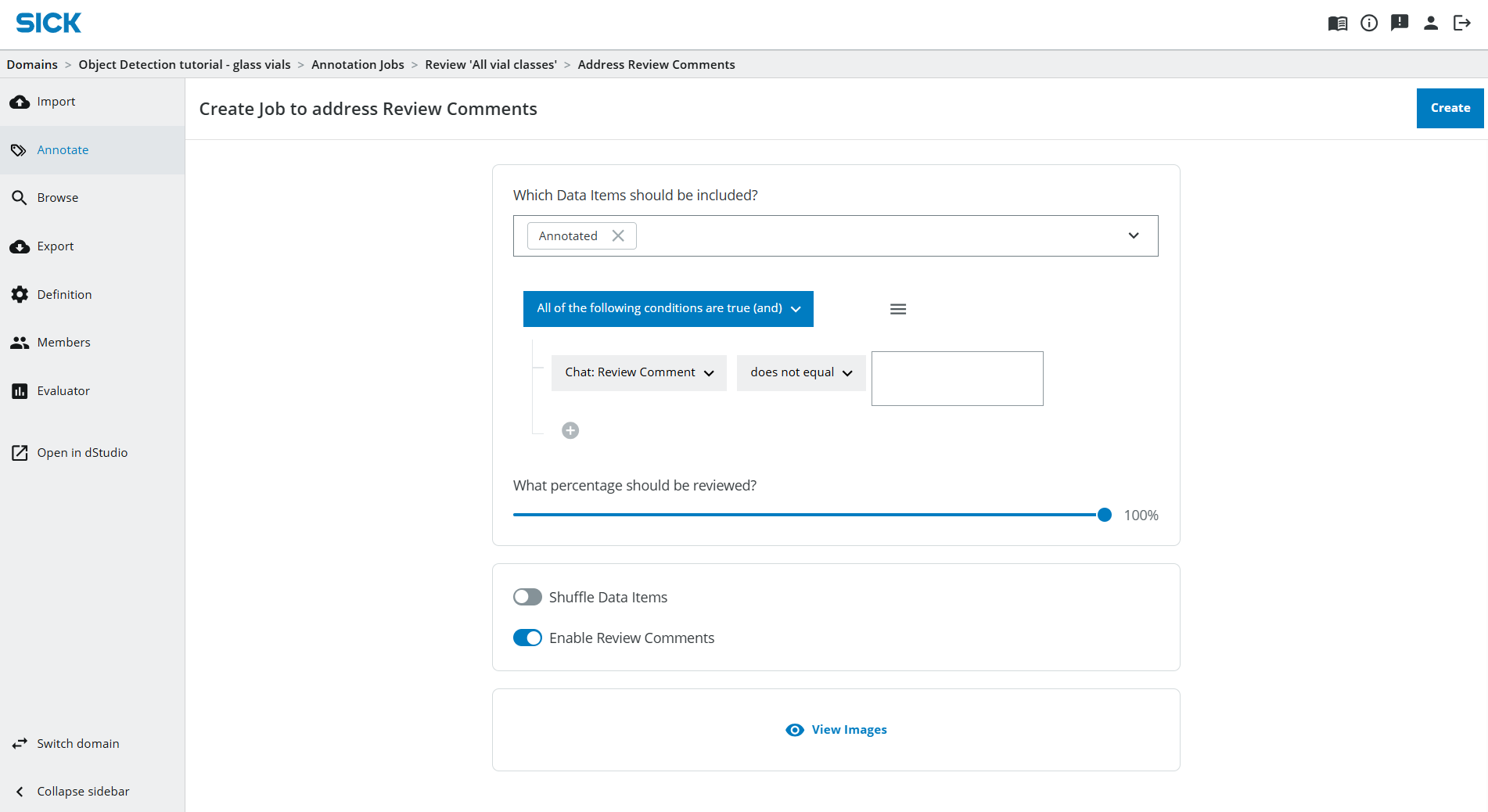
When you open the Annotation Job you will only see images with Review Comments.